
How to customize your introduction section

You’ll notice that above the first section, which is Nature of Mathematics, we have this blank area. That’s the introduction section.
This is what the students will first see when they log into your course.
So I recommend that you take the time to set it up and customize it.


This brings us to the page where we can customize it. Now, if we want to customize it the first thing we need to do is to click on the “custom” button. And now we can add a title in here. I’m going to title it, “Hi, I’m Ma’am Tania! I’ll be your math teacher for this semester”.

Now, down below we have this rich text editor where we can add in different things. Some things that I think are good to put in this introduction section include the title of the course. Perhaps you want to even leave a description. And I like to leave an image of myself so that students can familiarize themselves with what I look like.
Right now I’m going to go in here and actually add an image. I’ll do that by using the rich text editor. I’ll click on image.

I’ll click on browse repositories
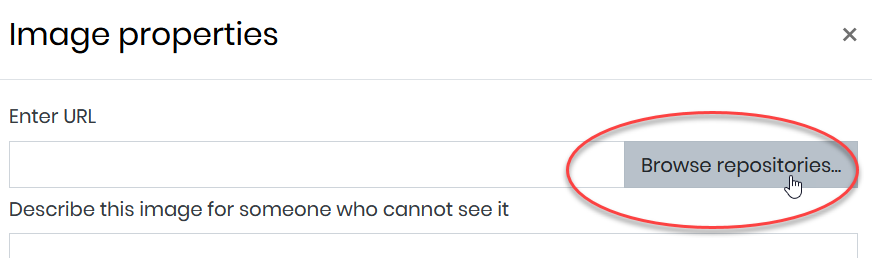
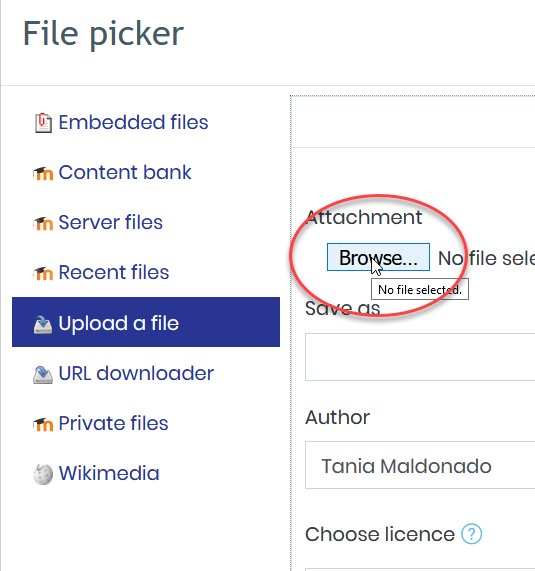
Under upload a file. I’ll click browse.
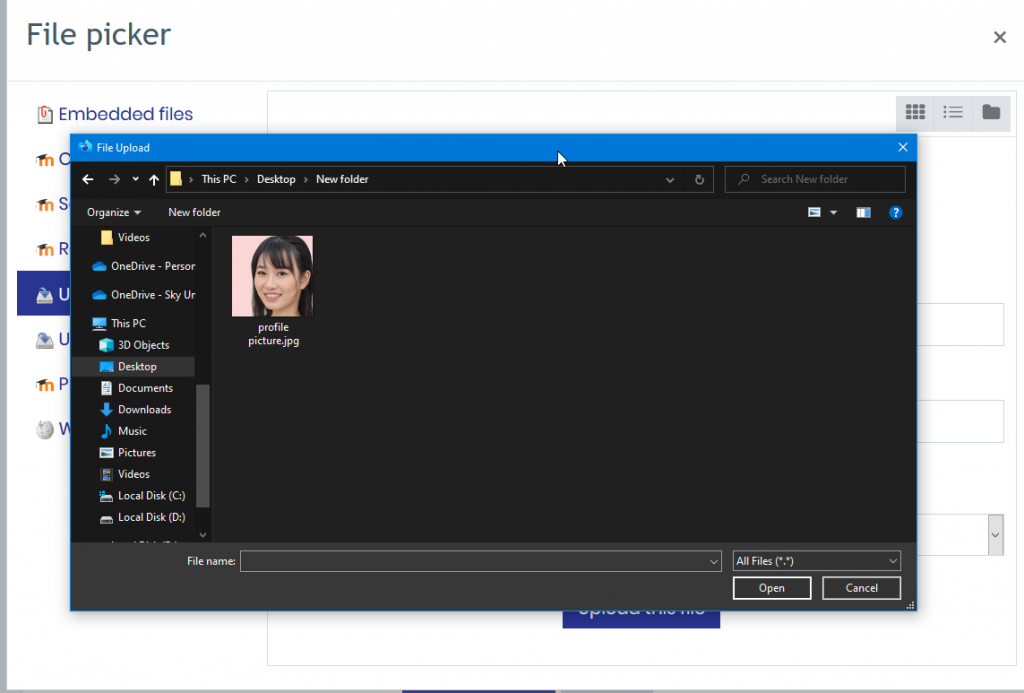
I’m going to browse my computer. And here I have a picture of me.
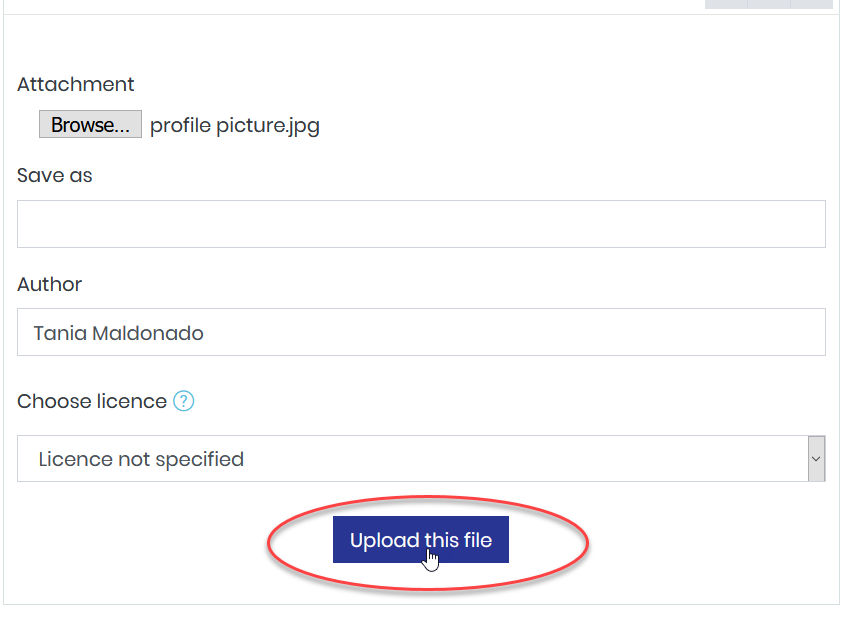
We can see it loaded in here. I’ll click on upload this file
Down below, we can leave a description of it, “Image of your teacher, Ma’am Tania.” And then down below, it shows us the size. Now this is a gigantic size right now. So I’m going to change this. I’ll change it over here to 100 pixels. And then notice off to the right, if I keep auto-size checked it should automatically keep the ratio maintained. So I’ll click off of this. And you can see that it did change that to 100 to keep that ratio the same. We can align it where we want. I’ll keep it on the bottom. And then I’ll click on save image.
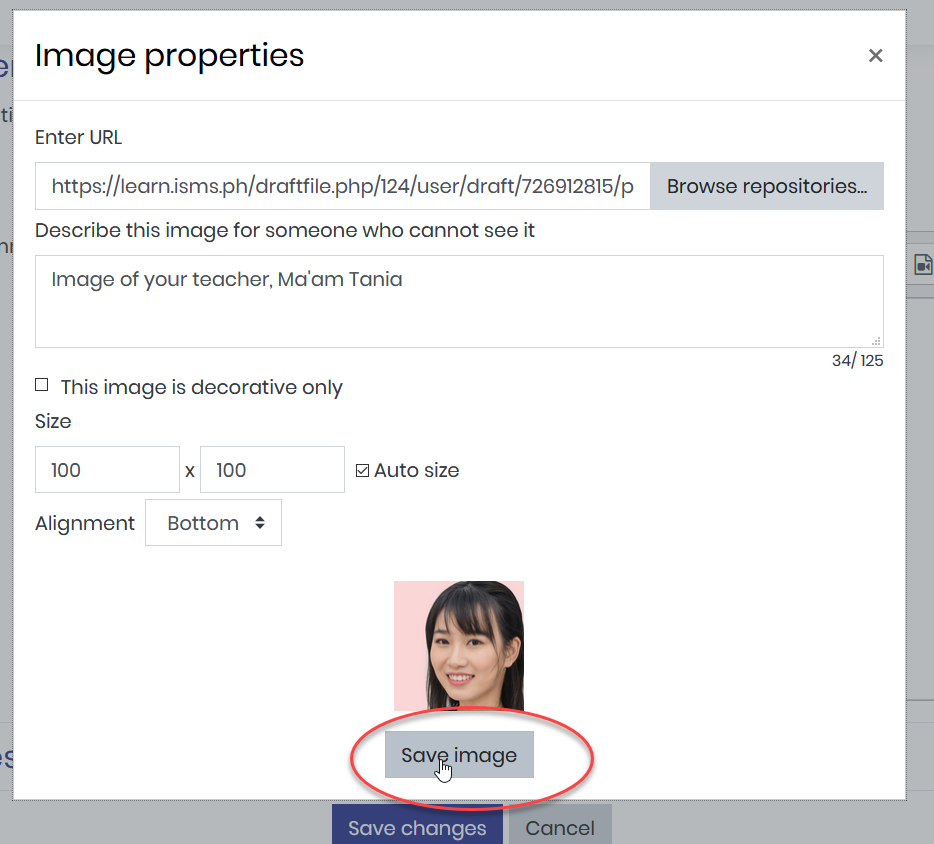
So like that I now have that image inside of here. When I’m done, I’m going to go down and click on save changes.
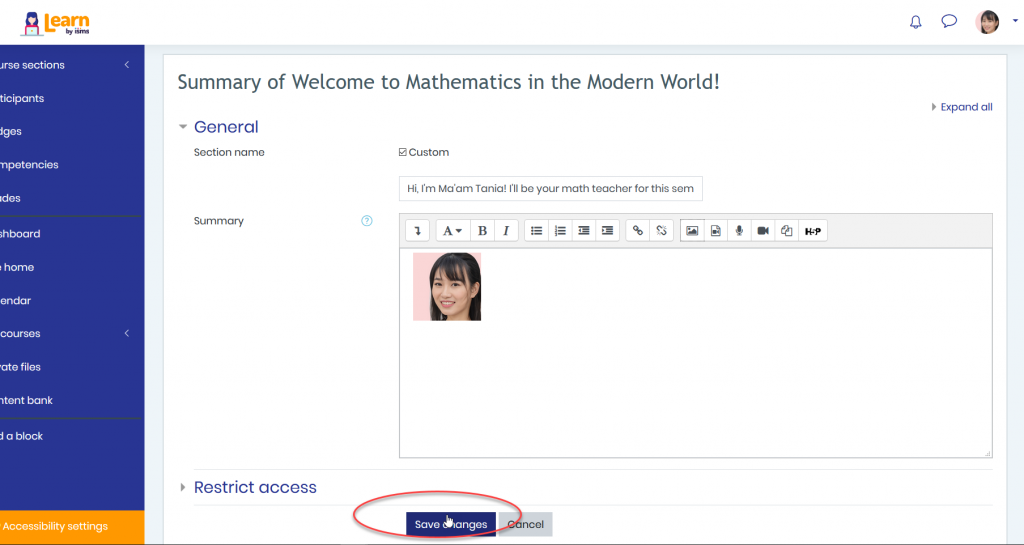
And like that, I have now customized my introduction section. I think this looks a lot better. One other important element in the introduction section is the announcements feature. But we’ll discuss this in another article right here. Take the time to set up this introduction section to help tie the course together and improve the user experience.
