
How to switch roles in your Learn LMS
One of my favorite features inside of Learn LMS is the ability to switch roles, or to look at your course from the perspective of a student.
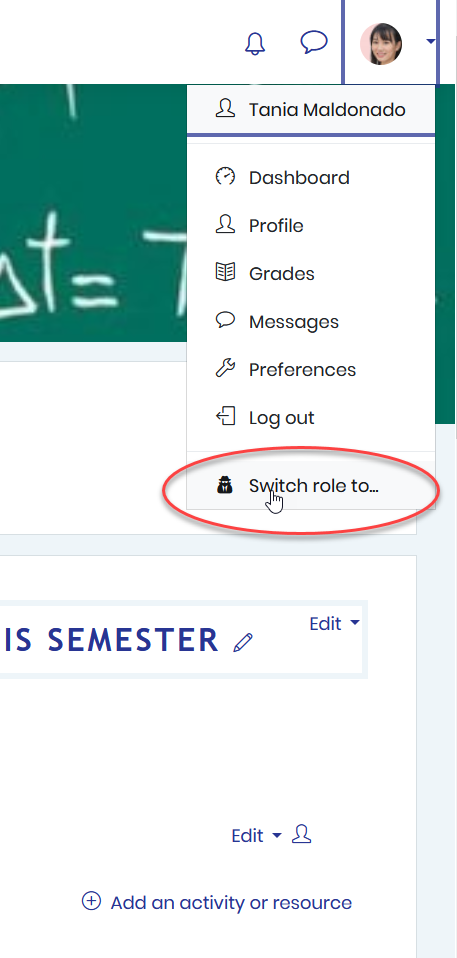
I can do it by going to the drop down up by my profile pictures. So, up here next to my profile picture. I’ll click on that. And at the bottom I want to select switch role to.
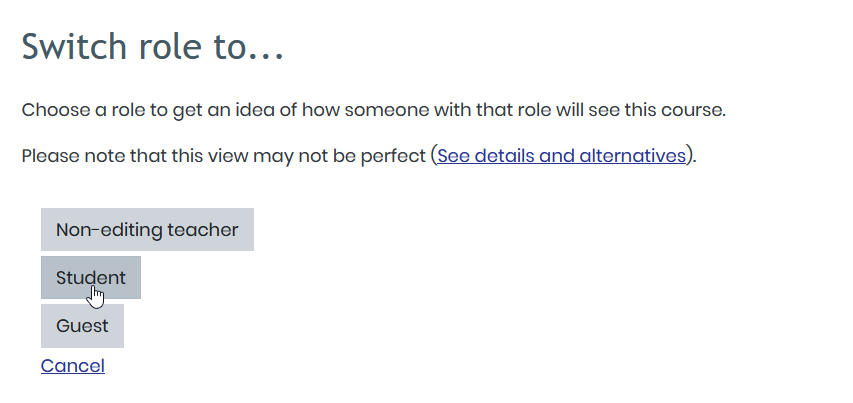
Once I do this it asks if I want to switch to a non-editing teacher, a learner or a guest. And in this case, I want to switch to see what it looks like to the learners. I’ll click here.

And this is what my page will look like to the learners.
Now, this feature will be even more important later once we’ve started to add activities, assignments, quizzes and other things.
It’s important to take a look at your course through the perspective of a student to make sure that you know how it appears to them. And also that it appears the way that you want it to.
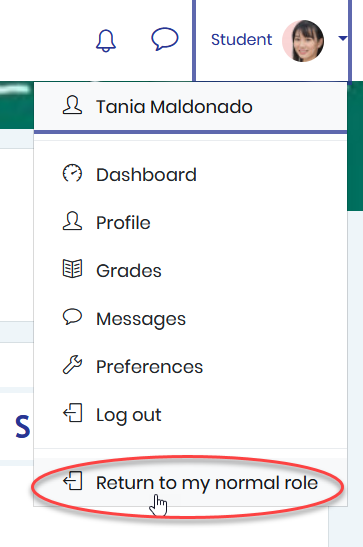
Now, when I’m done I can go back up to the top, click on that drop down and then click on return to normal role.
Take advantage of this feature inside of Learn LMS, and look at your course through the eyes of the participants.